Have you been affected by my title changes?

tenor.gif

Edit 1:
I will not post anymore out of respect to my post count being your mom's favorite position.

Edit 2:
So this place counts edits as posts now?
 
Last edited:
Are we allowed to change our titles?
Yes, here's how:


If you have a Windows Home edition, you will have to edit the Windows Registry to make these changes. You can also do it this way if you have Windows Pro or Enterprise, but feel more comfortable working in the Registry than Group Policy Editor. (If you have Pro or Enterprise, though, we recommend using the easier Group Policy Editor, as described in the next section.)

Standard warning: Registry Editor is a powerful tool and misusing it can render your system unstable or even inoperable. This is a pretty simple hack and as long as you stick to the instructions, you shouldn’t have any problems. That said, if you’ve never worked with it before, consider reading about how to use the Registry Editorbefore you get started. And definitely back up the Registry (and your computer!) before making changes.

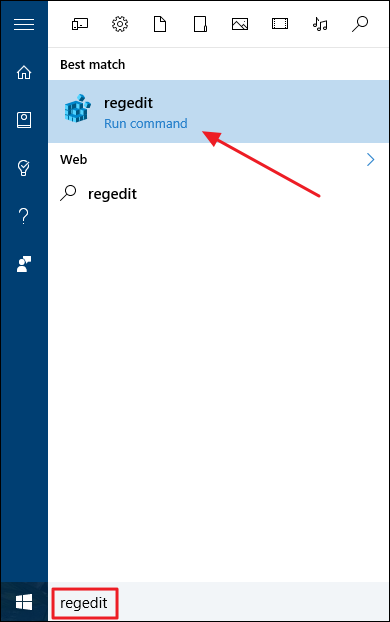
To get started, open the Registry Editor by hitting Start and typing “regedit.” Press Enter to open Registry Editor and give it permission to make changes to your PC.

wmp_1

In the Registry Editor, use the left sidebar to navigate to the following key:

HKEY_LOCAL_MACHINE\SYSTEM\CurrentControlSet\Control\FileSystem
wmp_2


On the right, find a value named LongPathsEnabled and double-click it. If you don’t see the value listed, you’ll need to create it by right-clicking the FileSystem key, choosing New > DWORD (32-bit) Value, and then naming the new value LongPathsEnabled .

wmp_3

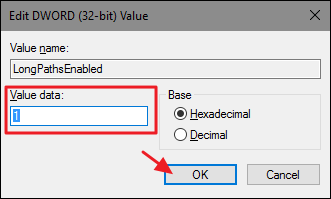
In the value’s properties window, change the value from 0 to 1 in the “Value data” box and then click OK.

wmp_4

You can now close Registry Editor and restart your computer (or sign out of your account and sign back on). If you ever want to reverse the changes, just head back to the LongPathsEnabledvalue and set it from 1 back to 0.

Download Our One-Click Registry Hack
wmp_5

If you don’t feel like diving into the Registry yourself, we’ve created two downloadable registry hacks you can use. One hack removes the 260 character path limit and the other hack restores the default limit. Both are included in the following ZIP file. Double-click the one you want to use, click through the prompts, and then restart your computer.

Long Path Names Hacks

RELATED: How to Make Your Own Windows Registry Hacks

These hacks are really just the FileSystem key, stripped down to the LongPathsEnabled value we described above, and then exported to a .REG file. Running the “Remove 260 Character Path Limit” hack sets the LongPathsEnabled value to 1. Running the “Restore 260 Character Path Limit (Default)” hack sets the value back to 0. And if you enjoy fiddling with the Registry, it’s worth taking the time to learn how to make your own Registry hacks.

Pro and Enterprise Users: Remove the 260 Character Path Limit with the Local Group Policy Editor
RELATED: Using Group Policy Editor to Tweak Your PC

If you’re using Windows 10 Pro or Enterprise, the easiest way to disable the new app install notifications is by using the Local Group Policy Editor. It’s a pretty powerful tool, so if you’ve never used it before, it’s worth taking some time to learn what it can do. Also, if you’re on a company network, do everyone a favor and check with your admin first. If your work computer is part of a domain, it’s also likely that it’s part of a domain group policy that will supersede the local group policy, anyway.

In Windows 10 Pro or Enterprise, hit Start, type gpedit.msc, and press Enter.

gp_1

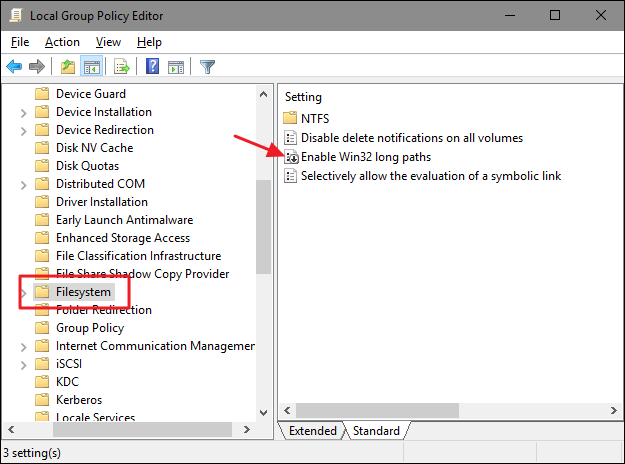
In the Local Group Policy Editor, in the left-hand pane, drill down to Computer Configuration > Administrative Templates > System > Filesystem. On the right, find the “Enable win32 long paths” item and double-click it.

gp_2

In the properties window that opens, select the “Enabled” option and then click “OK.”

gp_3

You can now exit the Local Group Policy Editor and restart your computer (or sign out and back in) to allow the changes to finish. If at any time you want to reverse the changes, just follow the same procedure and set that option back to “Disabled” or “Not Configured.”

The maximum path limit may not be something you’ve ever run into, but for some people it can certainly be the occasional frustration. Windows 10 has finally added the ability to remove that limit. You just have to make a quick change to the Registry or Group Policy to make it happen.


....or just give CowpokeU a cumpster handjob.
 
Yes, here's how:


If you have a Windows Home edition, you will have to edit the Windows Registry to make these changes. You can also do it this way if you have Windows Pro or Enterprise, but feel more comfortable working in the Registry than Group Policy Editor. (If you have Pro or Enterprise, though, we recommend using the easier Group Policy Editor, as described in the next section.)

Standard warning: Registry Editor is a powerful tool and misusing it can render your system unstable or even inoperable. This is a pretty simple hack and as long as you stick to the instructions, you shouldn’t have any problems. That said, if you’ve never worked with it before, consider reading about how to use the Registry Editorbefore you get started. And definitely back up the Registry (and your computer!) before making changes.

To get started, open the Registry Editor by hitting Start and typing “regedit.” Press Enter to open Registry Editor and give it permission to make changes to your PC.

wmp_1

In the Registry Editor, use the left sidebar to navigate to the following key:

HKEY_LOCAL_MACHINE\SYSTEM\CurrentControlSet\Control\FileSystem
wmp_2


On the right, find a value named LongPathsEnabled and double-click it. If you don’t see the value listed, you’ll need to create it by right-clicking the FileSystem key, choosing New > DWORD (32-bit) Value, and then naming the new value LongPathsEnabled .

wmp_3

In the value’s properties window, change the value from 0 to 1 in the “Value data” box and then click OK.

wmp_4

You can now close Registry Editor and restart your computer (or sign out of your account and sign back on). If you ever want to reverse the changes, just head back to the LongPathsEnabledvalue and set it from 1 back to 0.

Download Our One-Click Registry Hack
wmp_5

If you don’t feel like diving into the Registry yourself, we’ve created two downloadable registry hacks you can use. One hack removes the 260 character path limit and the other hack restores the default limit. Both are included in the following ZIP file. Double-click the one you want to use, click through the prompts, and then restart your computer.

Long Path Names Hacks

RELATED: How to Make Your Own Windows Registry Hacks

These hacks are really just the FileSystem key, stripped down to the LongPathsEnabled value we described above, and then exported to a .REG file. Running the “Remove 260 Character Path Limit” hack sets the LongPathsEnabled value to 1. Running the “Restore 260 Character Path Limit (Default)” hack sets the value back to 0. And if you enjoy fiddling with the Registry, it’s worth taking the time to learn how to make your own Registry hacks.

Pro and Enterprise Users: Remove the 260 Character Path Limit with the Local Group Policy Editor
RELATED: Using Group Policy Editor to Tweak Your PC

If you’re using Windows 10 Pro or Enterprise, the easiest way to disable the new app install notifications is by using the Local Group Policy Editor. It’s a pretty powerful tool, so if you’ve never used it before, it’s worth taking some time to learn what it can do. Also, if you’re on a company network, do everyone a favor and check with your admin first. If your work computer is part of a domain, it’s also likely that it’s part of a domain group policy that will supersede the local group policy, anyway.

In Windows 10 Pro or Enterprise, hit Start, type gpedit.msc, and press Enter.

gp_1

In the Local Group Policy Editor, in the left-hand pane, drill down to Computer Configuration > Administrative Templates > System > Filesystem. On the right, find the “Enable win32 long paths” item and double-click it.

gp_2

In the properties window that opens, select the “Enabled” option and then click “OK.”

gp_3

You can now exit the Local Group Policy Editor and restart your computer (or sign out and back in) to allow the changes to finish. If at any time you want to reverse the changes, just follow the same procedure and set that option back to “Disabled” or “Not Configured.”

The maximum path limit may not be something you’ve ever run into, but for some people it can certainly be the occasional frustration. Windows 10 has finally added the ability to remove that limit. You just have to make a quick change to the Registry or Group Policy to make it happen.


....or just give CowpokeU a cumpster handjob.


Cant we just go into account settings or something.
 
Top